
Reinstall a Cloud Server
We recommend creating a free snapshot during the initial server setup or before important operations. This allows you to restore the Cloud Server in case of an emergency.
Cloud Servers cannot be reinitialized like Cloud VPS. If you need to reinstall or replace the operating system, you must delete and then recreate the Cloud Server.
Step 1 - Deletion
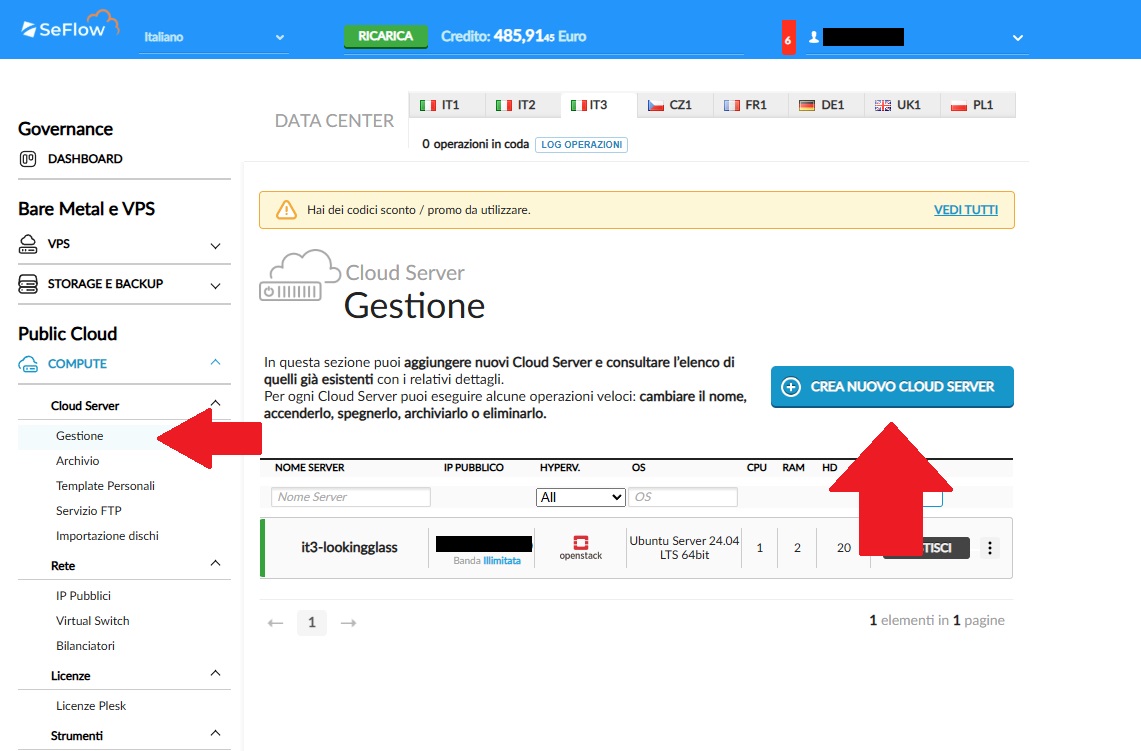
- In the left-hand menu, go to Public Cloud → Compute → Cloud Server → Management.
- In the Cloud Server Management section, you’ll find all powered-on and powered-off Cloud Servers.
- Locate the Cloud Server you want to delete.
- Click the MANAGE button to open the details page.
- Ensure the Cloud Server is turned off. If it’s running, shut it down.
- In the SERVER ACTIONS area, click DELETE.
- In the dialog box, type
DELETE CLOUD SERVER.
It is important to select DELETE CLOUD SERVER and not DELETE CLOUD SERVER AND IP to avoid permanently losing the associated IP addresses.
Step 2 - Creation
You can now recreate the Cloud Server.
- In the left-hand menu, go to Public Cloud → Compute → Cloud Server → Management.
- Click Create New Cloud Server.
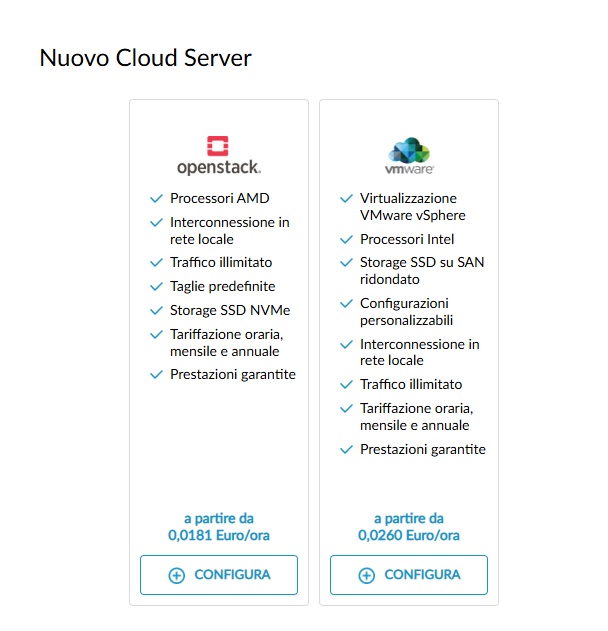
- Select the same Cloud Server type as before (for example, if it was OpenStack, select OpenStack).
- Click Configure for the selected type.
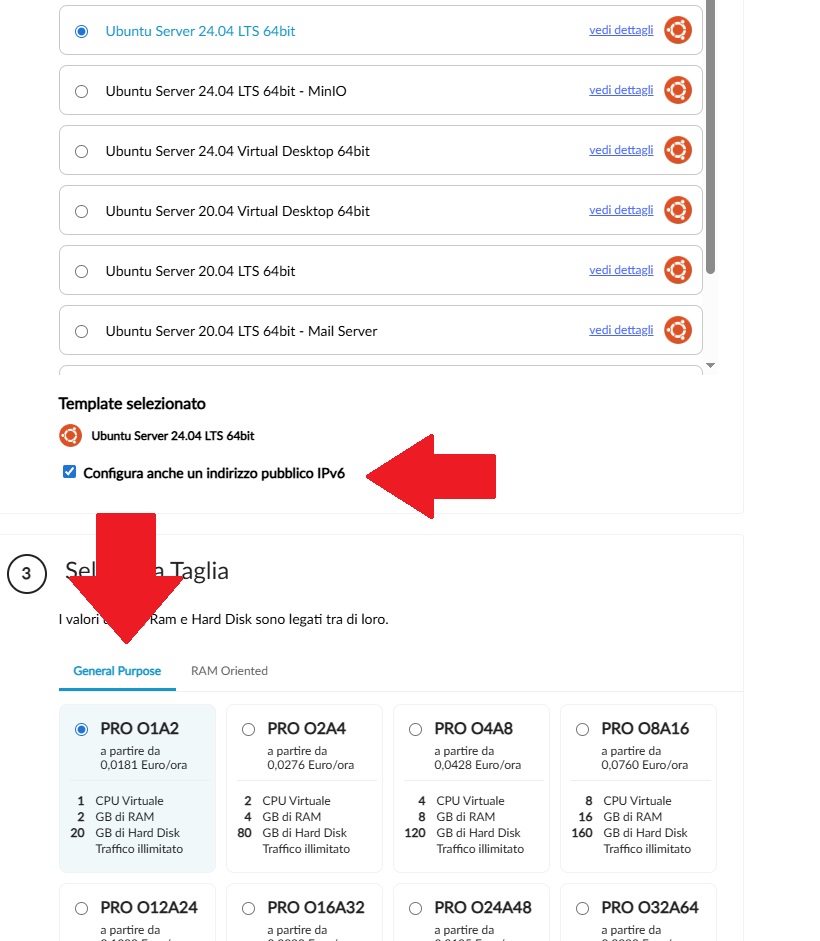
- Select one of the available templates.
- By selecting Also configure a public IPv6 address (recommended), the system will assign both an IPv6 and an automatically assigned IPv4 address.
- The public IPv6 address can only be added during Cloud Server creation.
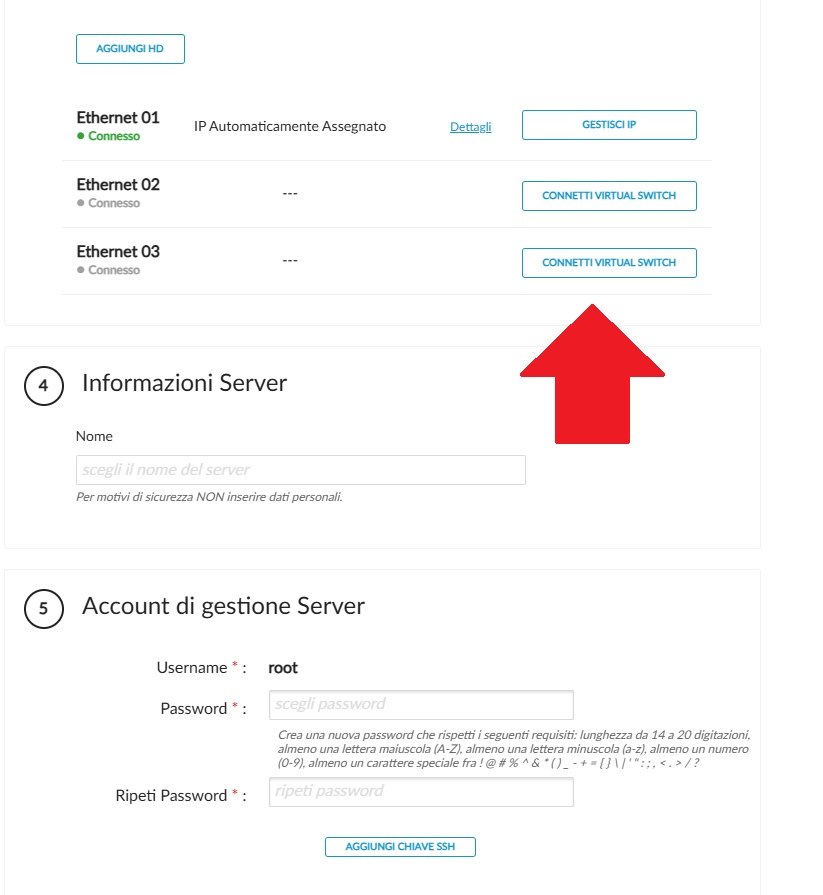
- Assign a name to the Cloud Server.
- Set the administrator password for the Cloud Server.
- If you selected a Linux template, you can add an SSH key.
In the Network section, click Manage IP next to Ethernet 01.
A window will open where you can assign all or some of the IPs from the deleted server.
Select the Hourly billing mode.
Click CREATE NEW CLOUD SERVER. In the confirmation window Create new Cloud Server, click OK, CREATE CLOUD SERVER.
Tip. We recommend hourly billing. The monthly cost projection is always displayed in the control panel interface.


