
Delete a Cloud Server, Active or Archived, and Manage Associated IPs
Delete an Active Cloud Server
Deleting a Cloud Server and its associated IP addresses is irreversible. If you purchased the Cloud Server with a monthly (30 days) or annual plan, any remaining credit will not be refunded. You explicitly waive the prepaid days until the service expiration date.
- Access the Control Panel: https://admin.services.seflow.cloud
- Select the Data Center hosting the Cloud Server.
- In the left-hand menu, go to Public Cloud → Compute → Cloud Server → Management.
- In the Cloud Server Management section, you’ll see all powered-on and powered-off Cloud Servers.
- Locate the Cloud Server you wish to delete.
- Click the MANAGE button to open the details page.
- Ensure the Cloud Server is turned off. If it’s running, shut it down.
- In the SERVER ACTIONS area, click DELETE.
(Fig.1)
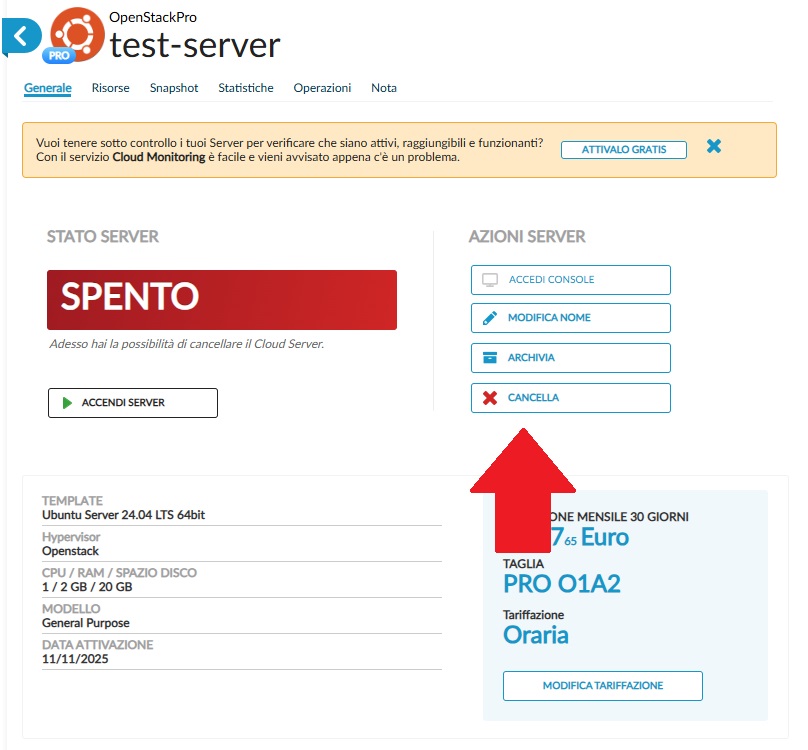
The Delete Cloud Server window will open, where you must choose one of two options:
- DELETE CLOUD SERVER: deletes only the Cloud Server.
- DELETE CLOUD SERVER AND IP: deletes the Cloud Server and all associated IP addresses.
(Fig.2)
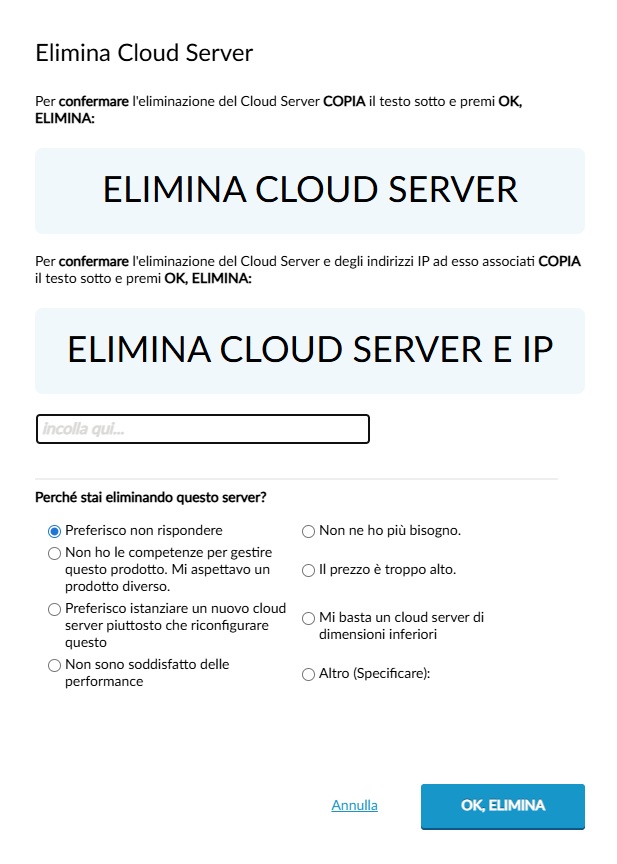
Confirm by clicking OK, DELETE.
If you want to delete the Cloud Server but keep the IPs for future use or to assign them to another Cloud Server, type
DELETE CLOUD SERVER. If you also want to delete all IPs, which is irreversible, type DELETE CLOUD SERVER AND IP.Delete an Archived Cloud Server
Deleting a Cloud Server and its associated IP addresses is irreversible. If you purchased the Cloud Server with a monthly (30 days) or annual plan, any remaining credit will not be refunded. You explicitly waive the prepaid days until the service expiration date.
- Access the Control Panel: https://admin.services.seflow.cloud
- Select the Data Center hosting the Cloud Server.
- In the left-hand menu, go to Public Cloud → Compute → Cloud Server → Archive.
- In the Archived Cloud Servers section, you’ll find all archived Cloud Servers.
- Locate the Cloud Server you wish to delete.
- Click the MANAGE button to open the details page.
- In the SERVER ACTIONS area, click DELETE.
The Delete Cloud Server window will open, where you must choose one of two options:
- DELETE CLOUD SERVER: deletes only the Cloud Server.
- DELETE CLOUD SERVER AND IP: deletes the Cloud Server and all associated IP addresses.
(Fig.2)
Confirm by clicking OK, DELETE.
If you want to delete the Cloud Server but keep the IPs for future use or to assign them to another Cloud Server, type
DELETE CLOUD SERVER. If you also want to delete all IPs, which is irreversible, type DELETE CLOUD SERVER AND IP.


