
The activation or reinstallation of servers with Windows 2019 or 2022 does not include the automated setup of a RAID system. Once the server is delivered or reinstalled, we must therefore proceed with the RAID setup.
First, we log in to the system via Remote Desktop and press Windows key + R, or in the search field, we type "run". A window will open in which to type diskmgmt.msc
The Disk Management window will open. Once open, if Disk 1 is unallocated, it will ask you to initialize it. Press "OK". With the right mouse button, click on Disk 0 and then select "Convert to Dynamic Disk".
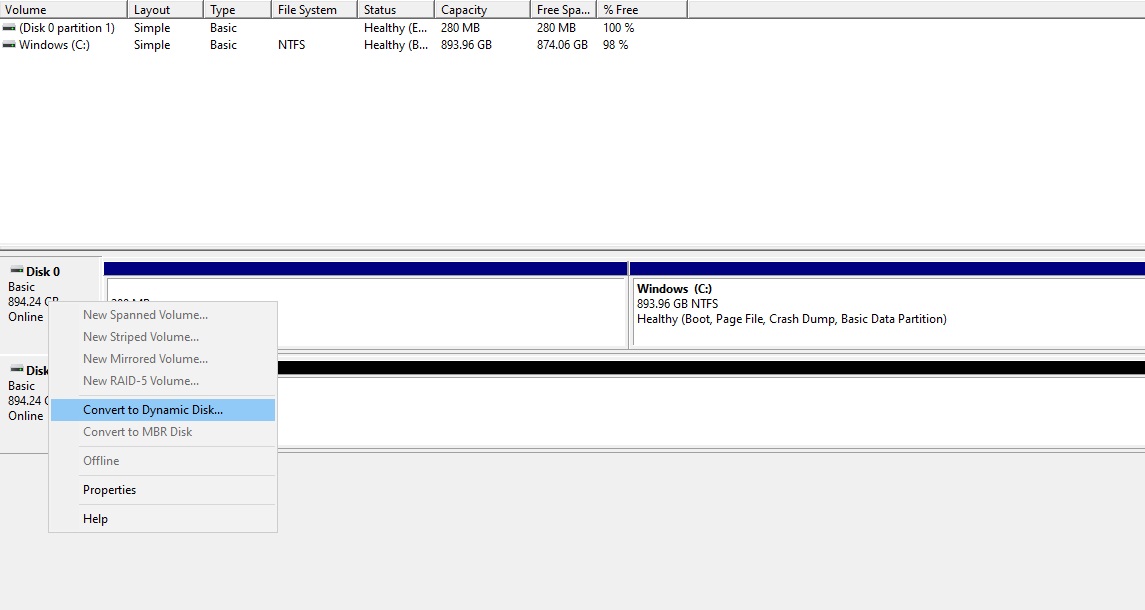
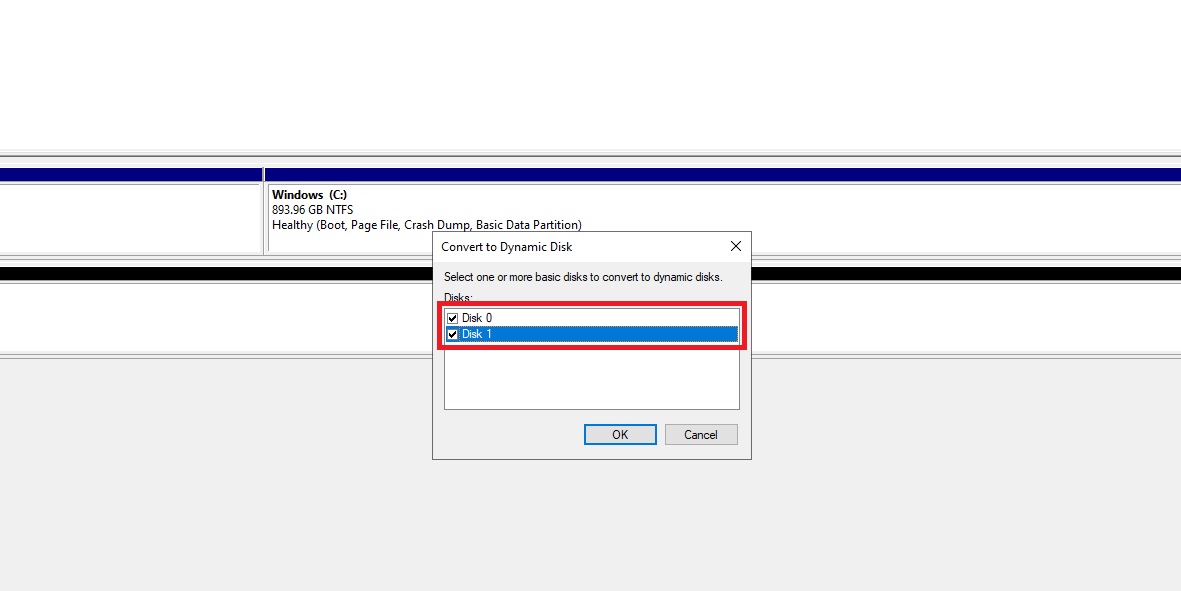
It will ask which disks to convert, select all those that will be part of the RAID and confirm.
Select Windows C: and with the right mouse button click on "Add Mirror".
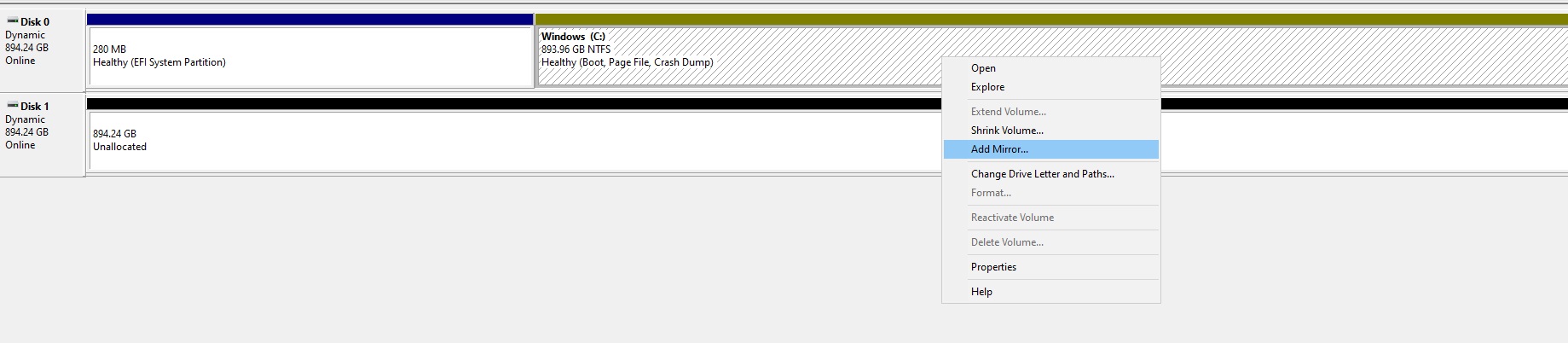
Select the disk on which to create the mirror (usually Disk 1) and confirm the operation.
Within a few hours, the disks will be in sync.
Please note: If the error message "The operation failed to complete because the Disk Management console view is not up-to-date" appears, make sure you have installed all Windows updates through Windows Update.


