
Associare un Floating IP (IP Aggiuntivo) ad un Cloud Server
I Floating IP sono IP aggiuntivi che possono essere associati a qualsiasi Cloud Server e spostati in qualsiasi momento. In caso di cancellazione del Cloud Server, è possibile conservarli e riutilizzarli all’interno del proprio datacenter.
Creare un Floating IP Pubblico
Per poter aggiungere IP ai Cloud Server è necessario disporre di IP pubblici liberi. Se non ne hai, puoi richiederne uno: l’assegnazione è immediata.
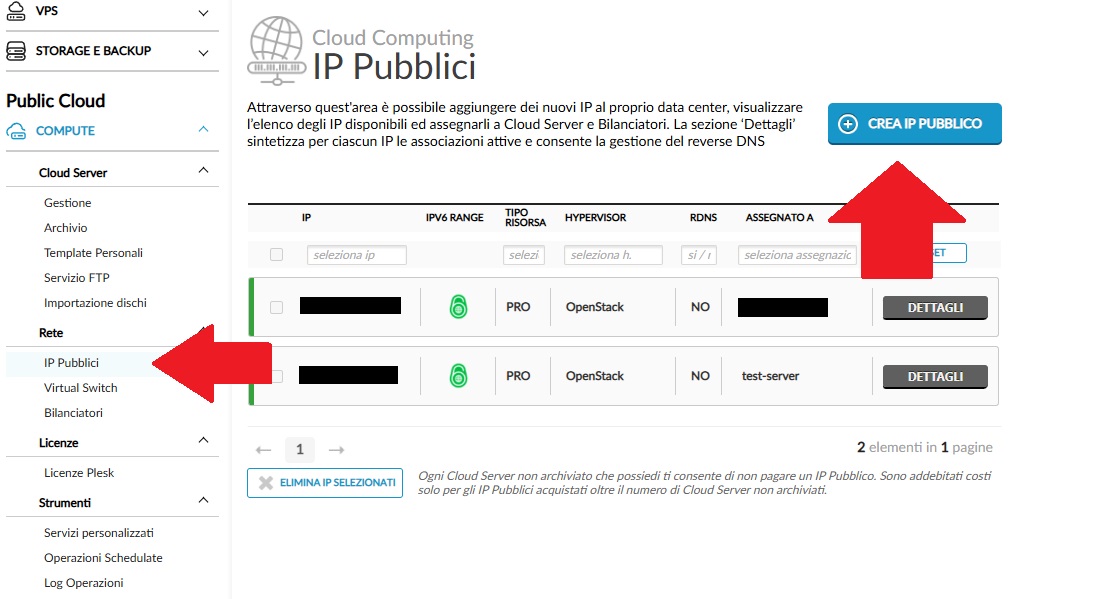
- Vai su Rete → IP Pubblici.
- Clicca su Crea IP Pubblico.
Scegli il tipo di IP pubblico da creare.
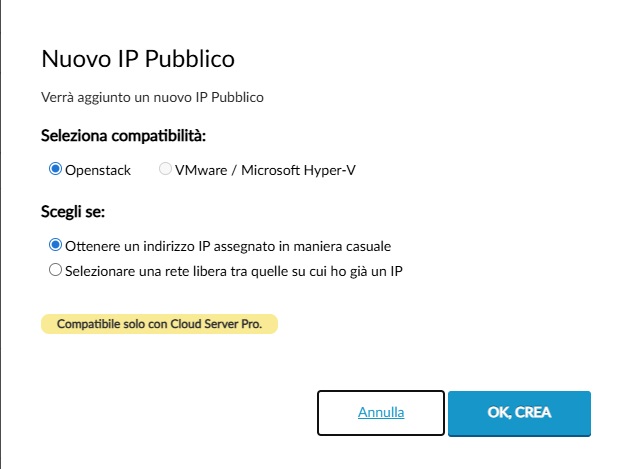
L’indirizzo IP verrà immediatamente assegnato e sarà disponibile per l’associazione ai Cloud Server.
Associare un IP pubblico dal Pannello di Controllo
Per associare un IP pubblico a un Cloud Server segui questi passaggi:
- Nel menu verticale a sinistra, sotto COMPUTE, seleziona Cloud Server → Gestione.
- Individua il Cloud Server a cui vuoi associare l’IP pubblico.
- Clicca sul pulsante GESTISCI per accedere alla pagina di dettaglio.
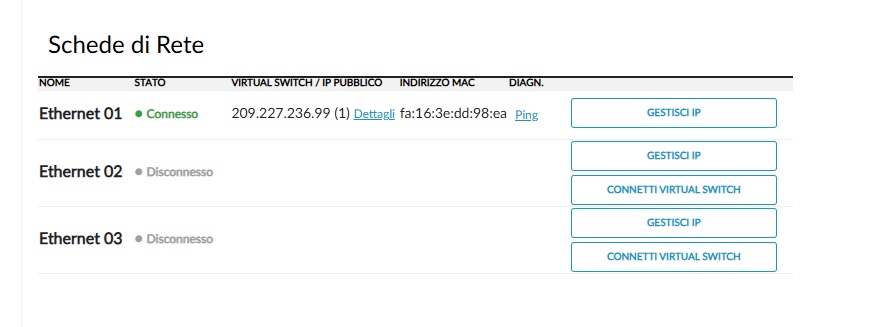
- Scorri fino alla sezione Schede di rete.
- Individua la prima scheda disconnessa e clicca su GESTISCI IP.
Si aprirà la finestra Gestisci IP Pubblici.
- Alla voce Rete pubblica puoi:
- Assegnare automaticamente un nuovo IP pubblico (acquisto di un nuovo indirizzo IP).
- Selezionare un IP pubblico tra quelli disponibili e non ancora assegnati.
Per completare l’associazione clicca su CONFERMA.
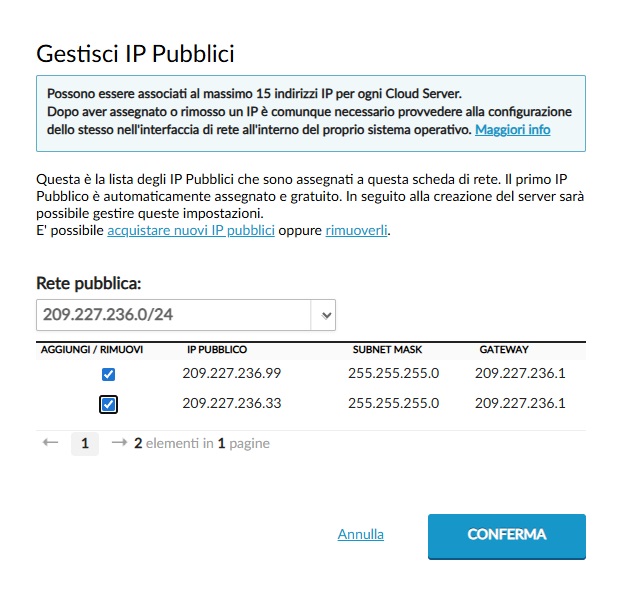
L’indirizzo IP pubblico selezionato sarà immediatamente associato al Cloud Server scelto.
Configurazione dell’IP nel sistema operativo
Dopo aver associato l’IP pubblico, è necessario configurarlo all’interno dell’interfaccia di rete del sistema operativo del Cloud Server. Seleziona la guida corrispondente al tuo sistema:


